Mozilla Firefox is one of the popular free and open-source web browser developed by Mozilla Foundation and its subsidiary, Mozilla Corporation. Firefox is available for Windows, macOS and Linux operating systems. Its sibling, Firefox for Android, is available for Android. Firefox uses the Gecko layout engine to render web pages, which implements current and anticipated web standards.
Firefox Beta channel will provide early access to features that are going to be available in next immediate stable release... If you want to enjoy the features before anyone... Here I'm going to show you how to install Firefox Beta in Ubuntu.
Mozilla maintaining official Firefox Beta ppa for Ubuntu... We can use it to install Beta Version Of Firefox in Ubuntu.. Just run the below lines to add PPA.
Warning : Since Firefox's this PPA provides a beta Firefox version, you may find bugs. If you do, kindly report them at https://bugs.launchpad.net/~mozillateam
That's all for now... You can enjoy new features of Firefox... Happy Browsing...
How To Enable/Disable JavaScript In Your Web Browser
JavaScript is a standard programming language that can be included in web pages to provide functionality such as menus, sounds, and other interactive features. By default, Firefox enables the use of JavaScript and requires no additional installation.
Do you have to disable JavaScript, for some reason(see, Why do people disable JavaScript
)?
Here is the step-by-step instructions for disabling JavaScript in your browsers. By the way, Java and JavaScript are two different things, so make sure that you're looking at the correct language.
TIP : If you're a web developer, you are adding JavaScript to your pages, it's a good idea to view your pages with JavaScript disabled, so you can get an idea what users without JavaScript enabled browsers would see.
WARNING : Please note that you may loose some of the web page functionality by disabling JavaScript.
Disable JavaScript In Firefox
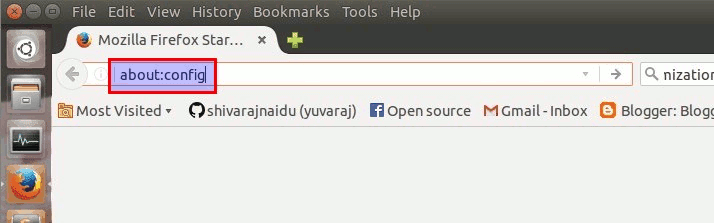
Step 1 :
Type about:config in your location bar and press "ENTER" button..
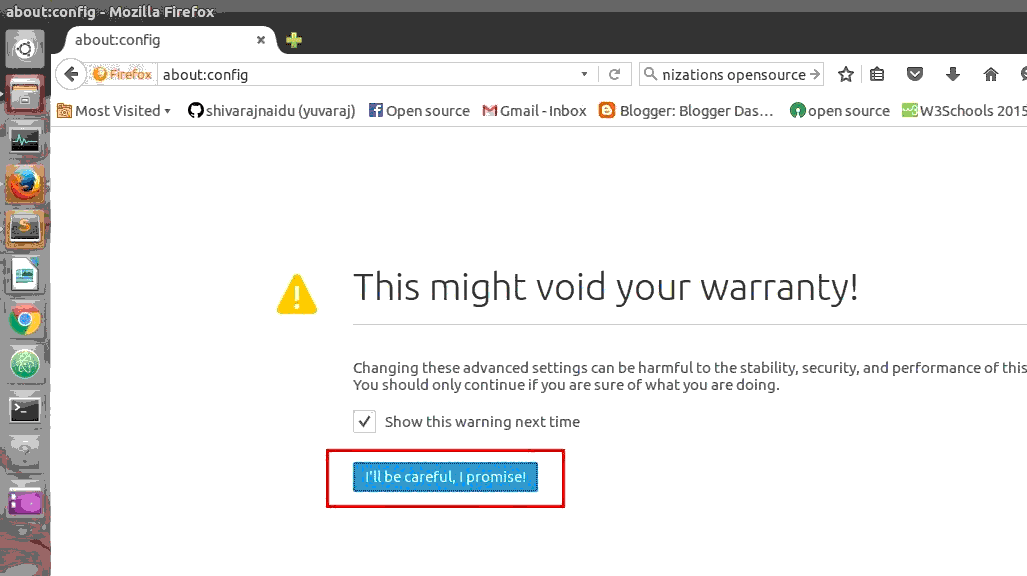
Step 2 :
Now confirm the warning message..
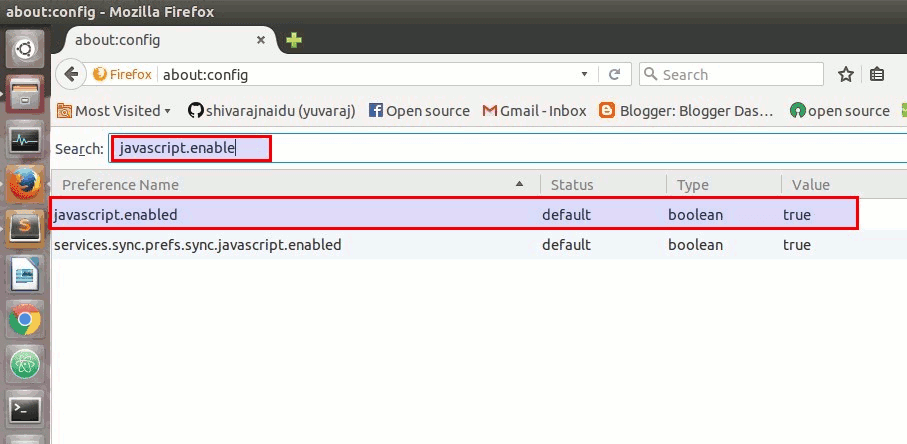
Step 3 :
Now , type "javascript.enabled" in search box..
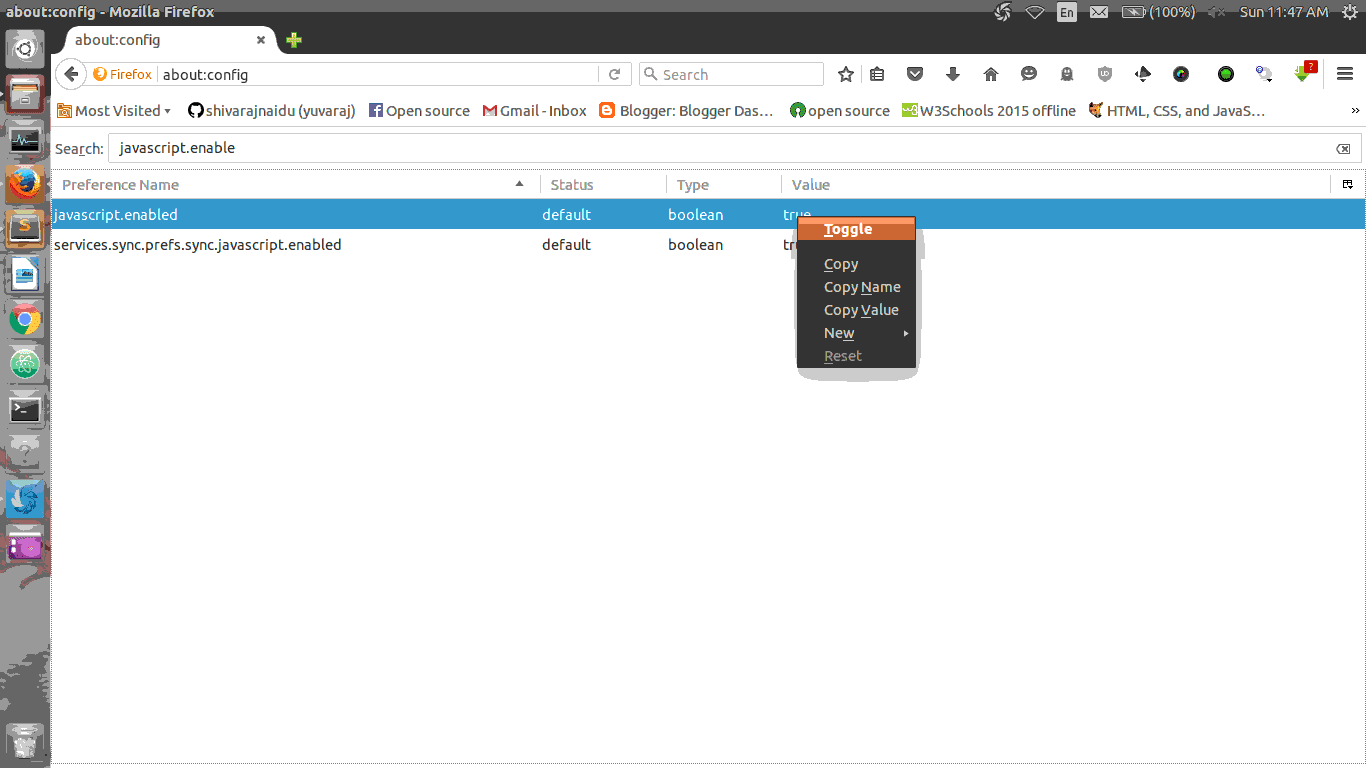
Now change the value of javascript.enabled to false (The default value is "true".. to change it to "false", Right click on it and select toggle option.)
To enable it again, toggle the value back to its default value.. (i.e) set the value as "true"
Disable JavaScript In Google Chrome
Step 1 :
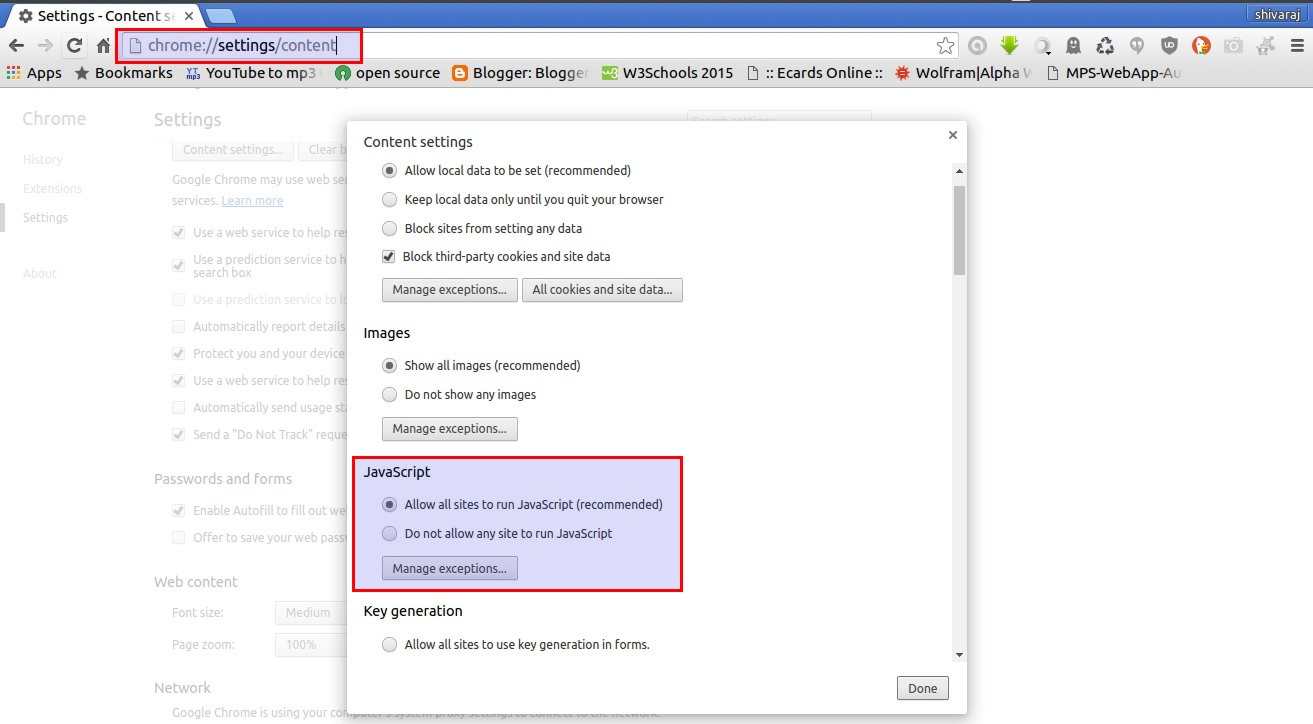
Open Browser Settings and then goto content options(through advace settings).. or (You can also directly access content settings simply , type chrome:settings/content in location bar and press "ENTER" button..) Then look at there for javascript options..
Step 2 :
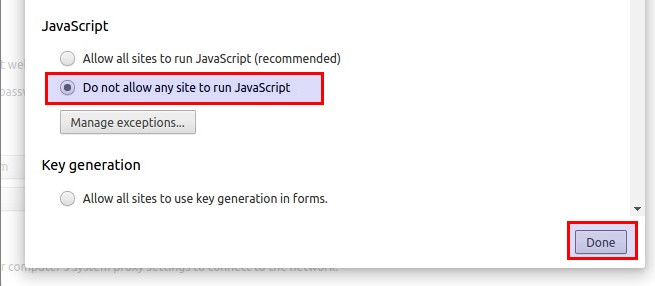
To disable JavaScript in your chrome browser.. Check the radio button named "Do Not Allow Any Site To Run JavaScript"
Disable JavaScript In Opera Browser
Step 1 :
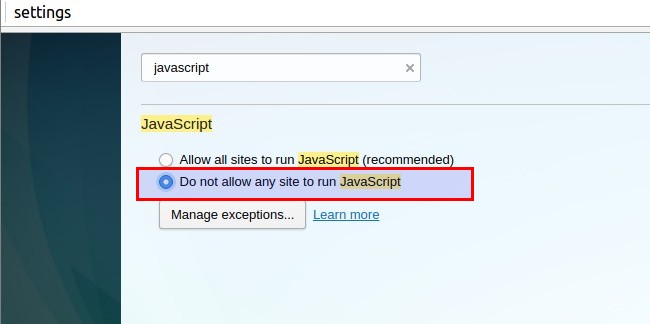
Open Browser Settings (You can also directly access browser settings simply , type chrome:settings in location bar and press "ENTER" button..) and then Type "javascript" in search box present in settings window..
Step 2 :
To disable JavaScript in your Opera web browser.. Check the radio button named "Do Not Allow Any Site To Run JavaScript"
Enable/Disable Backspace as 'Go Back' Shortcut in Firefox
In Firefox on Windows operating system, if you press the `backspace` key, it will take you one page back from current web page, an action that similar to when the both Firefox and IE browser's "Back" button, while `Shift+Backspace` will go forward. The backspace key is mapped to "Back" function in Firefox for Windows is for consistency with Internet Explorer.
On the other hand, Firefox in Linux by default does not map the backspace key to "Go Back" function to improve consistency with other applications running on Linux. Instead, the page will scroll up or down (when pressing Shift+Backspace key together).
The backspace as Back button feature can be easily turned on or off depending on user preference. Thus, Firefox for Windows users can disable the back function mapping to backspace key, and Firefox for Linux can enable the backspace to map to Back function easily, by using the following Firefox preference.
Step 1 :
Type about:config and then press Enter key in Firefox Location Box..
And then confirm the warning message.
Step 2 :
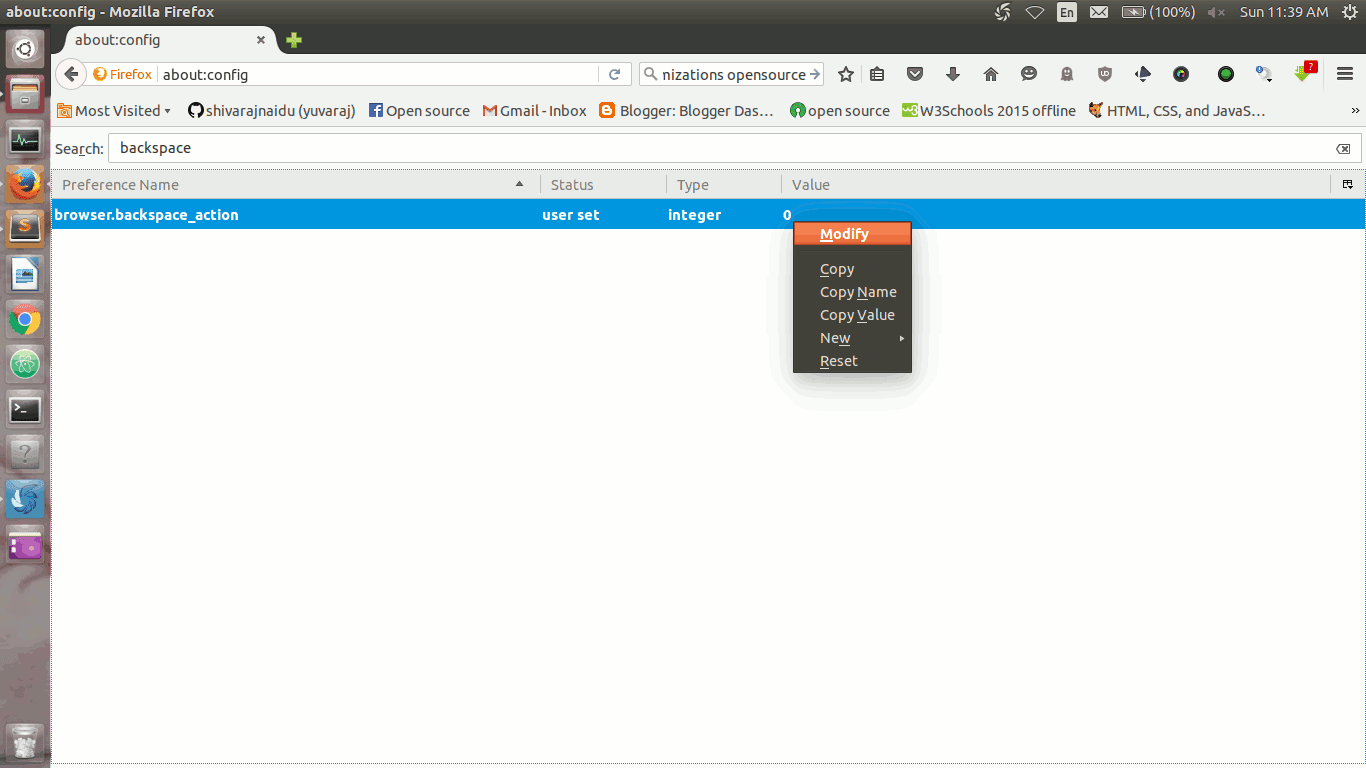
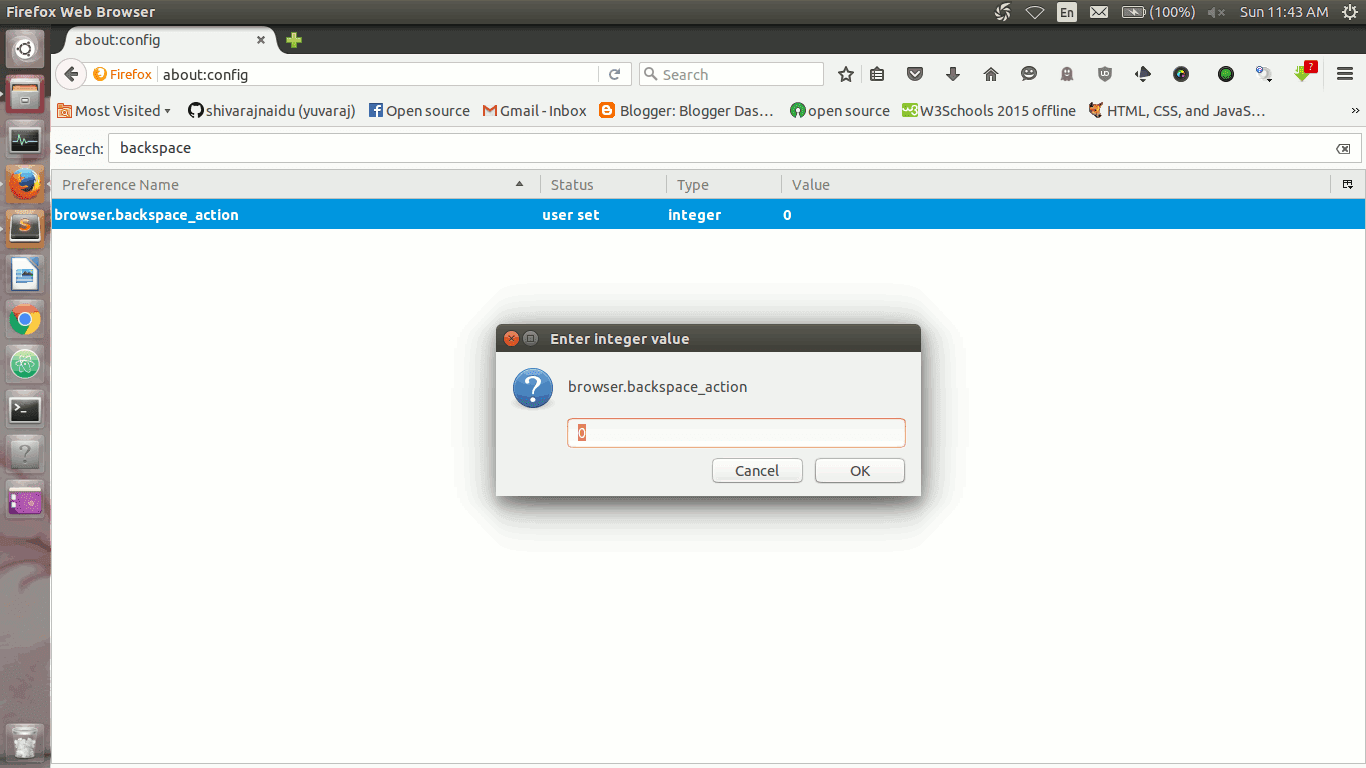
Then type "backspace" in search bar and locate the following preference name: browser.backspace_action
Right click on it ,select "Modify" option
and change the browser.backspace_action value to one of the following values (as per your need):
Set value as 0: If you want to set backspace key as 'Go Back' short cut. (Default in Windows)
Set value as 2: If you want disable Backspace as shortcut for 'Go Back' . (Default in Linux)
Firefox 46.0 Released with the awaiting GTK 3 integration on Linux , more safe JS execution and much faster experience...
Mozilla released Firefox 46 with GTK 3 Integration , More Secure JS execution environment and many fixes to screen readers ,web RTC and many other svg fixes... read what things have changed in FF46..
April 26, 2016, saw the official release of Firefox 46.0, the latest stable release of the popular open-source browser. As firefox is a mainstay of many Linux desktop distros, plenty of users will be keen to see how these changes will impact their favorite browser.
As is often the case, a number of the updates apply fixes to edge cases and obscure bugs that most users won't notice. Nevertheless, these fixes are important. But 46.0 isn't just about obscure bugs nobody cares about, it also brings a number of security and UI improvements that will be welcome to many GNU/Linux users.
This version of Firefox brings GTK3 integration, which the Linux world has been awaiting for some time. GTK3 is the widget toolkit that powers several popular desktop environments, including GNOME, Cinnamon, LXDE and Mate. Incorporating the same toolkit into the browser means tighter integration and better support for customization.
The change is not just cosmetic either. Older machines sometimes struggle to run multiple UI libraries at the same time, and browsers already are notorious memory hogs. Upgrading to 46.0 could make your browsing experience smoother and faster.
Security is a vital issue and one that often clashes with feature-rich applications. This is definitely true when it comes to Web sites and Web applications. Modern sites tend to be very JavaScript heavy, with rich interfaces that offer native-like performance. Unfortunately, allowing JavaScript code to execute in the browser opens a number of security weaknesses that clever cyber-criminals can exploit. And, that's one reason why many security-conscious users choose to deactivate JavaScript.
Mozilla has taken a step toward making JavaScript a more secure platform with a significant change to the way memory is allocated by the SpiderMonkey JavaScript compiler.
Continue Reading Full Articile @ linux journal
Linux Users Can Install or Update Firefox 46 From Their Distributions Official Repositories(Depends upon the Linux Distribution that It may takes one or two days to land New Firefox on Official Repositories.)
To install or Update Firefox on Debian and Ubuntu based systems : sudo apt-get update && sudo apt-get install firefox
Firefox 45 Beta Released ♥ See What Is New in FF45 ♥
The latest update of Firefox 45 Beta
is now available for download and testing with lot of new features
and bugfixes.
This update includes
GTK3 Integration for Linux and new Synced Tabs button in button bar
and more features for developers.
The official stable
version of Firefox 45 is planed to release on March 8 2015. Users who
are very curious and impatient to see and use new features of firefox
45 can download
Firefox 45 beta from official firefox beta channel.
The new features and fixes avilable in FireFox 45 are listed below.. look @ them.. :)
New In Firefox 45
Instant browser tab sharing through Hello
GTK3 integration (GNU/Linux only)
Synced Tabs button in button bar
Tabs synced via Firefox Accounts
from other devices are now shown in dropdown area of Awesome Bar
when searching
Introduce a new preference
(network.dns.blockDotOnion) to allow blocking .onion at
the DNS level
Inspector search now matches results from all content in the page, including subframes
Ability to filter snapshot output in memory tool
Support for diffing heap snapshots added to the memory tool
Added Negative url filtering for the network monitor
DOMContentLoaded and load events shown in the network monitor timelineList of animated properties and keyframes is now displayed when clicking on an animation in the animation-inspector’s timeline
Fine tune animations by changing the playback rate of animations in the animation-inspector's timeline
Firefox 44 Stable Officially Released Download and Install Now
Mozilla has officially released Firefox 44 for all supported operating systems.
Some new features have been introduced in both desktop and mobile versions including the new improved . Series of changes in were also implemented in the developer version of Firefox 44.
Windows users Can Download And Install Firefox 44 from Official Firefox Website
Note For Linux Users :Linux Users Can Install or Update Firefox 44 From Their Distributions Official Repositories(Depends upon the Linux Distribution that It may takes one or two days to land New Firefox on Official Repositories.)
To install or Update Firefox on Debian and Ubuntu based systems :
Some Awesome Opensource Web Browsers... Worth to Try... (part 2)
6 K-Meleon
K-Meleon is an extremely fast, customizable, lightweight web browser based on the Gecko layout engine developed by Mozilla which is also used by Firefox. K-Meleon is Free, Open Source software released under the GNU General Public License and is designed specifically for Microsoft Windows (Win32) operating systems.
Available platforms
Windows
Features
K-Meleon uses the native Windows API for user interface instead of Mozilla's cross-platform XML User Interface Language (XUL) layer, and as a result, is tightly integrated into the look and feel of the Windows desktop.
Konqueror is a free and open-source web browser and file manager that provides file viewer functionality for file systems such as local files, files on a remote FTP server and files in a disk image. It is a core part of the KDE Software Compilation. Konqueror is developed by volunteers and can run on most Unix-like operating systems and on Windows systems. Konqueror is licensed and distributed under the GNU General Public License version 2.
Available platforms
windows
Linux
Features
Webbrowsing using KHTML or KDEWebKit as rendering engines
File management using most of Dolphin's features (including version-control, service menus and the basic UI)
File management on ftp and sftp servers
Full featured FTP-client (you can split views to display local and remote folders and previews in the same window)
Embedded applications to preview files (e.g. Okular and Calligra for documents, Gwenview for pictures, KTextEditor for text-files)
Different kinds of plugins: Service-menus, KParts (embedded applications), KIO (accessing files using special protocols like http or ftp) and KPart-plugins (like AdBlocker...)
QupZilla is a new and very fast QtWebEngine browser. It aims to be a lightweight web browser available through all major platforms. This project has been originally started only for educational purposes. But from its start, QupZilla has grown into a feature-rich browser.
QupZilla has all standard functions you expect from a web browser. It includes bookmarks, history (both also in sidebar) and tabs. Above that, it has by default enabled blocking ads with a built-in AdBlock plugin.
Lynx is a highly configurable text-based web browser for use on cursor-addressable character cell terminals. As of 2015, it is the oldest web browser currently in general use and development, having started in 1992.
Links is an open source text and graphic web browser with a pull-down menu system. It renders complex pages, has partial HTML 4.0 support (including tables and frames and support for multiple character sets such as UTF-8), supports color and monochrome terminals and allows horizontal scrolling.
It is intended for users who want to retain many typical elements of graphical user interfaces (pop up windows, menus etc.) in a text-only environment.
Available platforms
Linux (Unix-like)
BSD
Windows
Features
Links runs on Linux, BSD, UNIX in general, OS/2, Cygwin under Windows, AtheOS, BeOS, FreeMint.
Easy and quick user control via pull-down menu in both text and graphics mode
Tables, frames in both graphics and text mode, builtin image display in graphics mode
Builtin image display for GIF, JPEG, PNG, XBM, TIFF in graphics mode
Anti-advertisement animation filter in animated GIFs
Automatic reconnection in case of TCP connection breakdown
Keepalive connections
Background (asynchronous) DNS lookup
48-bit high-quality image gamma correction, resampling and Floyd-Steinberg dithering in all color depths.
Easy installation, the browser is just one executable and no more files.
User-adjustable menu, HTML font size and image zoom factor.
Some Awesome Opensource Web Browsers... Worth to Try...
we all know that , how important world wide web is and how it integrated into our day to day life.
One of the key component of word wide web is, web browser. And , In general , an open source browser are always(at least for most cases..) richer and awesome than proprietary one. here , i am going to list ,some of open source browsers i knew... and worth trying...
Share Opensource Love ♥
1 Firefox
Firefox is a free, open-source web browser from Mozilla.
It offers numerous features and customization options. Its performance is excellent, and it's designed to protect your privacy.
and it is one of the most trusted web browser for security and privacy.
Chromium is the open-source web browser project from which Google Chrome draws its source code. The browsers share the majority of code and features, though there are some minor differences in features and they have different licensing.
GNU IceCat, formerly known as GNU IceWeasel, is a free software rebranding of the Mozilla Firefox web browser distributed by the GNU Project. It is compatible with Linux, Windows, Android and OS X.
The GNU Project attempts to keep IceCat in synchronization with upstream development of Firefox while removing all trademarked artwork. It also maintains a large list of free software plugins. In addition, it features a few security features not found in the mainline Firefox browser.
Midori is a lightweight web browser. It uses the WebKit rendering engine and the GTK+ 2 or GTK+ 3 interface. Midori is part of the Xfce desktop environment's Goodies component and was developed to follow the Xfce principle of "making the most out of available resources".
written in vala and C.
The SeaMonkey project is a community effort to develop the SeaMonkey all-in-one internet application suite. Such a software suite was previously made popular by Netscape and Mozilla, and the SeaMonkey project continues to develop and deliver high-quality updates to this concept. Containing an Internet browser, email & newsgroup client with an included web feed reader, HTML editor, IRC chat and web development tools, SeaMonkey is sure to appeal to advanced users, web developers and corporate users.
Under the hood, SeaMonkey uses much of the same Mozilla source code which powers such successful siblings as Firefox and Thunderbird. Legal backing is provided by the Mozilla Foundation.
NetSurf is a free, open source web browser. It is written in C and released under the GNU Public Licence version 2.
NetSurf has its own layout and rendering engine entirely written from scratch. It is small and capable of handling many of the web standards in use today.
Whether you want to check your webmail, read the news or post to discussion forums, NetSurf is your lightweight gateway to the world wide web. Actively developed, NetSurf is continually evolving and improving.