Showing posts with label chrome. Show all posts

Tuesday, September 20, 2016

How To Remove Password From Password Protected PDF File Using Google Chrome

How To Remove Password From Password Protected PDF File Using Google Chrome

Portable Document Format (PDF) is one of the commonly used file formats in our day to day life... While it offers grade of security with optional password protection, there are times when we may need unsecured copy of password protected PDF file.
Here, we are going to see, how to achieve the above with the evergreen web browser Google Chrome (of course, we can do the same with Mozilla Firefox )

So, Before we start, you need to have Google Chrome installed in your system... (See, How To Install Google Chrome On Ubuntu Linux).

Step 1 :

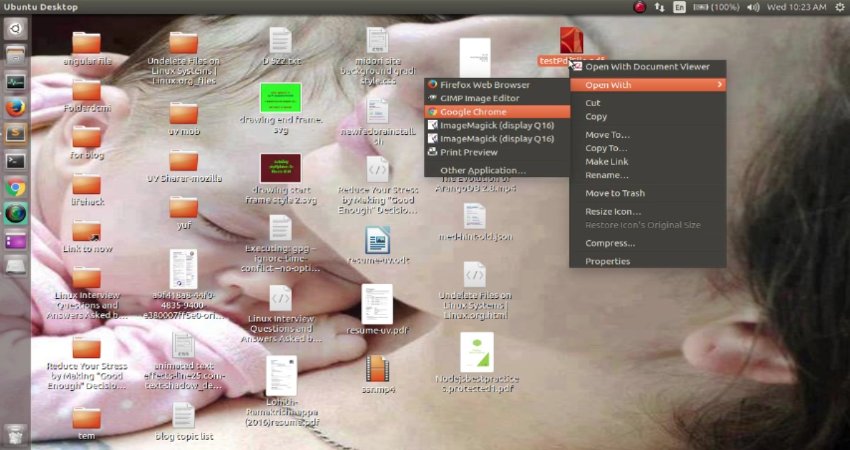
Open your password protected PDF file either with Google Chrome or with Mozilla Firefox...
Step 2 :

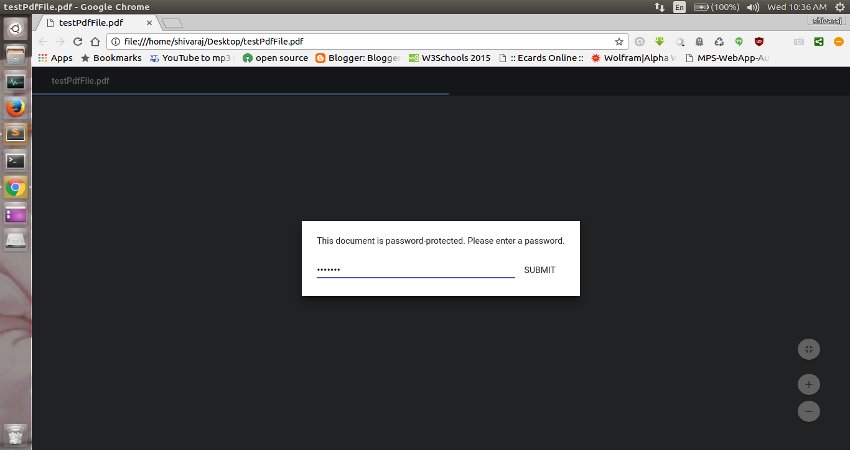
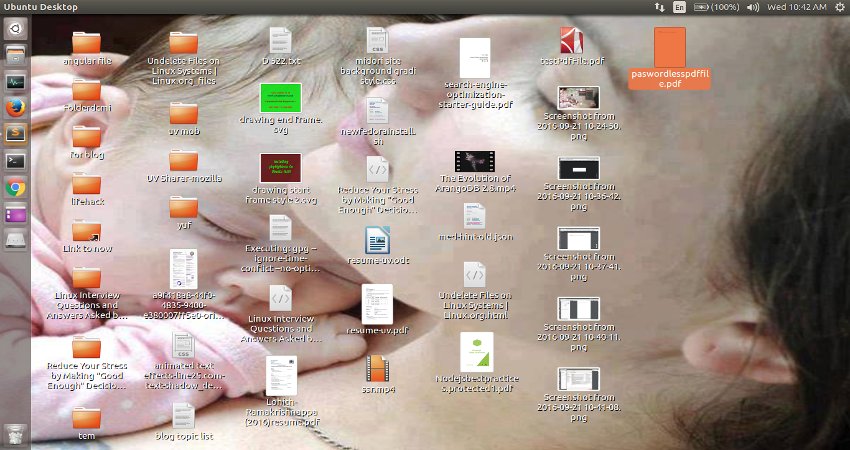
It will ask you for password ... provide it..
After entering password the PDF will be displayed by your browser..
Step 3 :

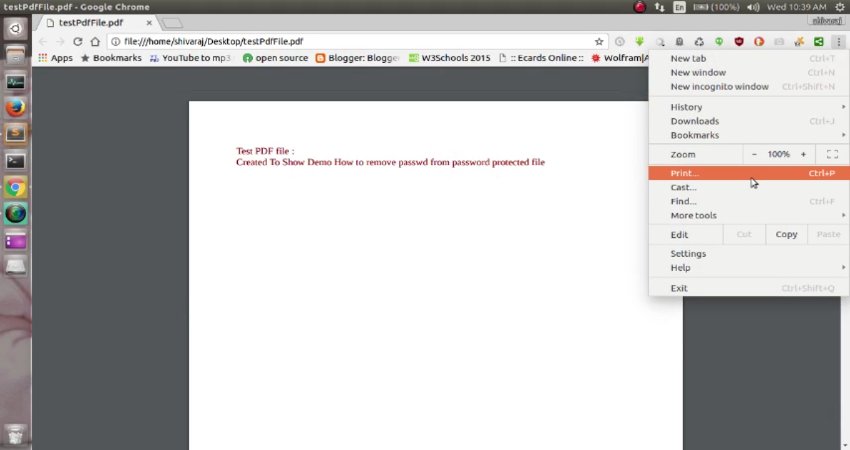
Now, Press Ctrl + P on your keyboard or go to options and click on Print option..
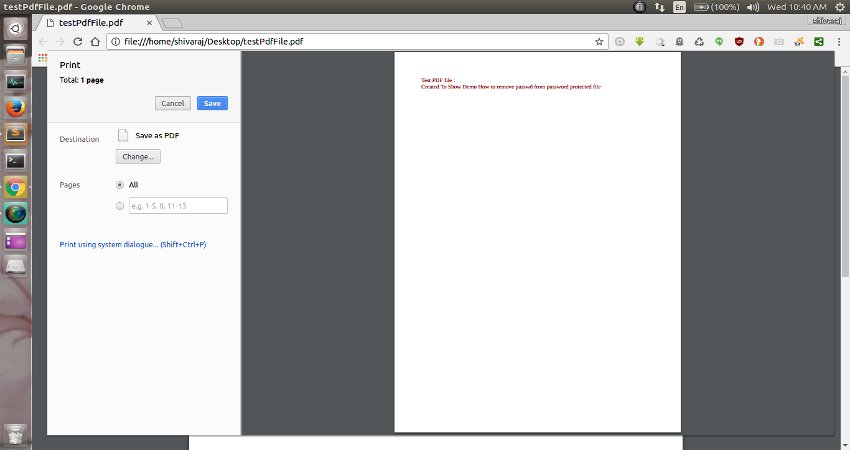
After you click on print option you will see dialog like shown below..
Step 4 :

Now click on Save button and Save the new copy of PDF file in somewhere else..
This new copy is password free ....
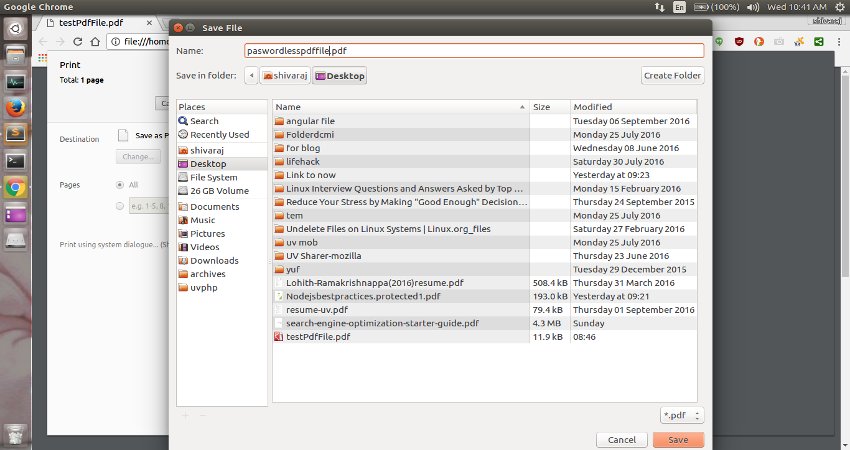

That's it ... Your new password less copy of PDF file is now ready...
Friends.. If you like this tip.. Do share this small trick on social media with your friends... You can follow more updates on our Facebook page


Here is the video for above tip...


Sunday, May 29, 2016

How To Enable/Disable JavaScript In Your Web Browser

How To Enable/Disable JavaScript
In Your Web Browser

JavaScript is a standard programming language that can be included in web pages to provide functionality such as menus, sounds, and other interactive features. By default, Firefox enables the use of JavaScript and requires no additional installation.

Do you have to disable JavaScript, for some reason(see, Why do people disable JavaScript )?
Here is the step-by-step instructions for disabling JavaScript in your browsers. By the way, Java and JavaScript are two different things, so make sure that you're looking at the correct language.

TIP : If you're a web developer, you are adding JavaScript to your pages, it's a good idea to view your pages with JavaScript disabled, so you can get an idea what users without JavaScript enabled browsers would see.


WARNING : Please note that you may loose some of the web page functionality by disabling JavaScript.

Disable JavaScript In Firefox

Step 1 :

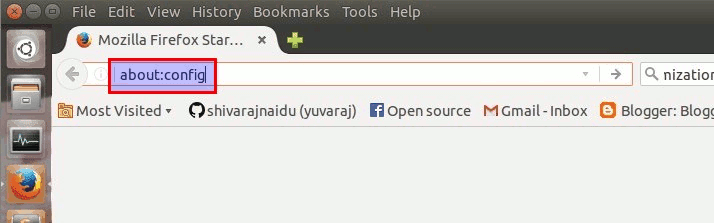
Type about:config in your location bar and press "ENTER" button..

Step 2 :

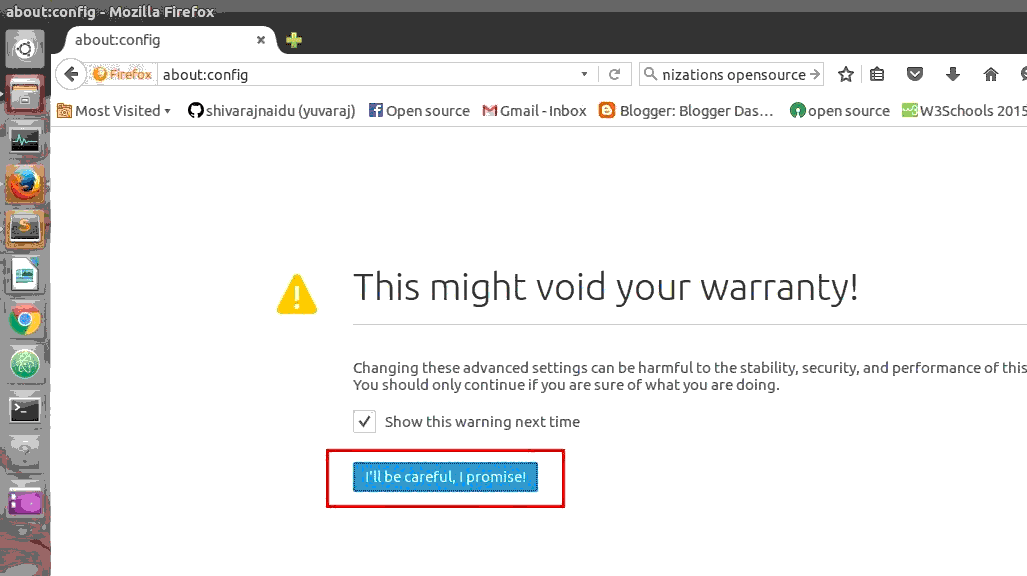
Now confirm the warning message..

Step 3 :

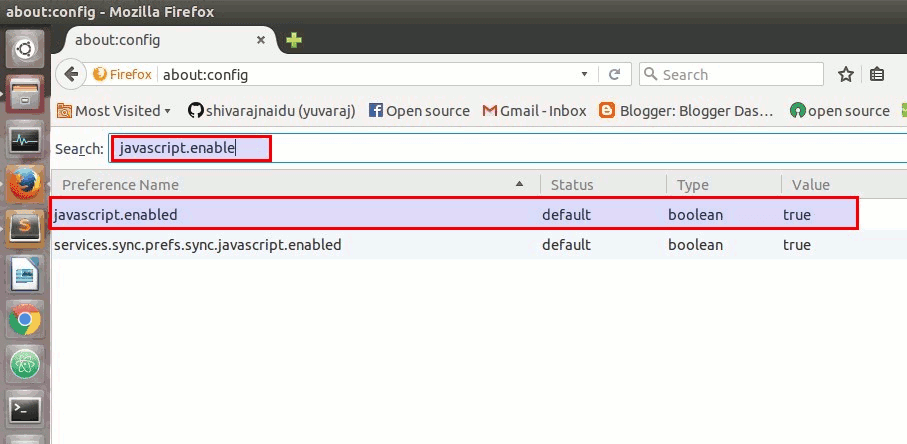
Now , type "javascript.enabled" in search box..

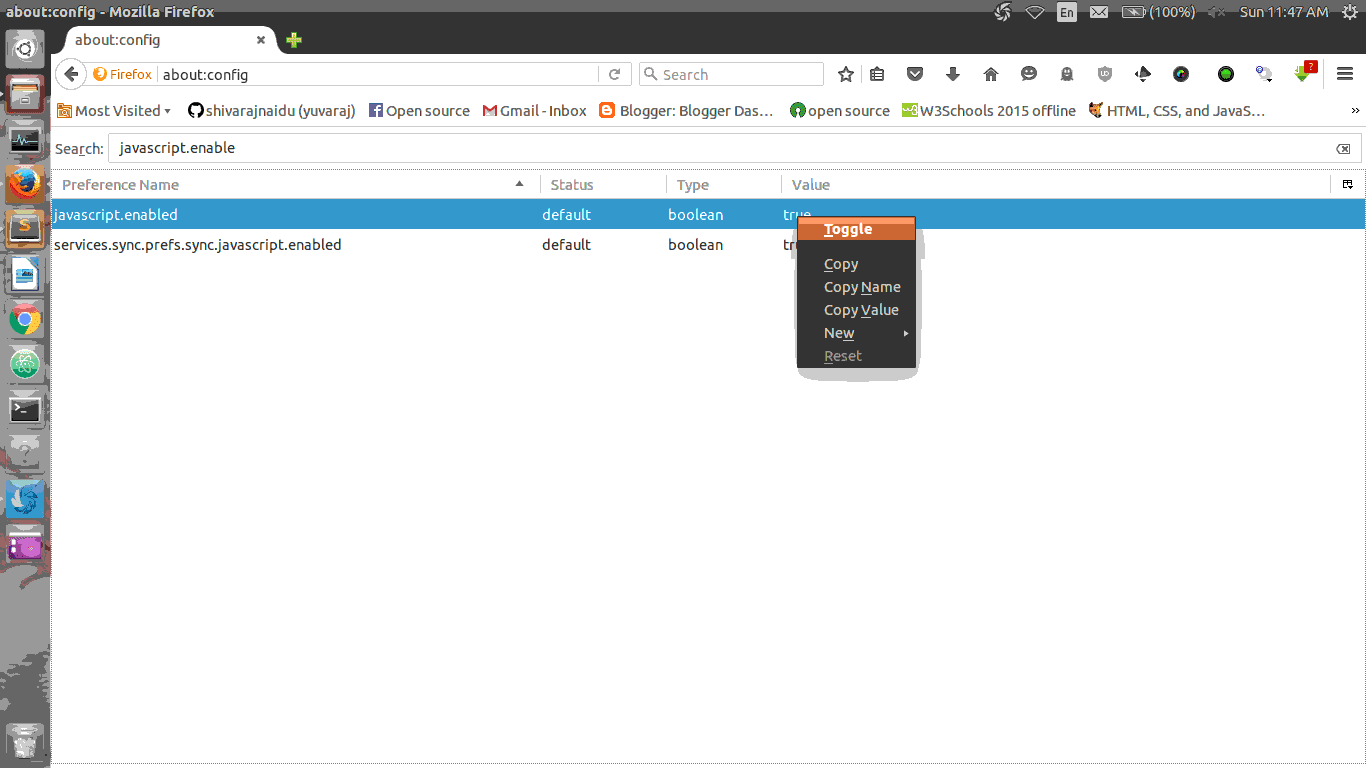
Now change the value of javascript.enabled to false (The default value is "true".. to change it to "false", Right click on it and select toggle option.)

To enable it again, toggle the value back to its default value.. (i.e) set the value as "true"

Disable JavaScript In Google Chrome

Step 1 :

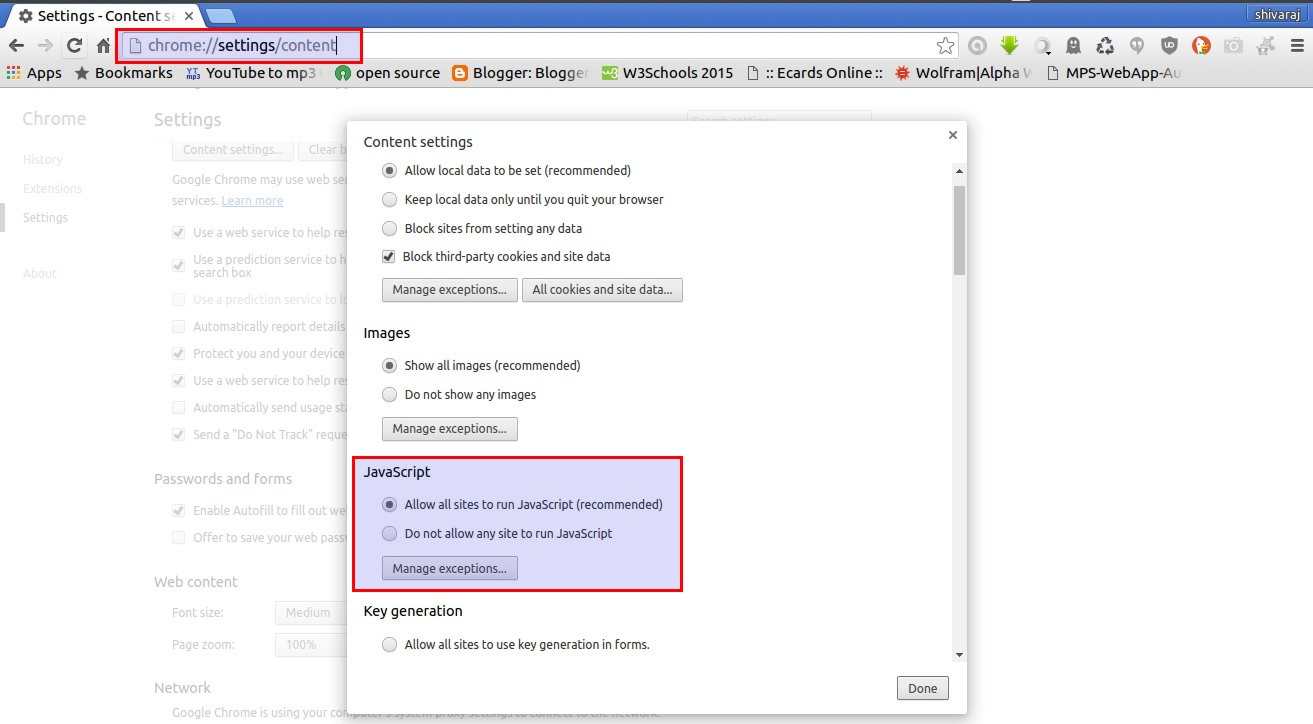
Open Browser Settings and then goto content options(through advace settings).. or (You can also directly access content settings simply , type chrome:settings/content in location bar and press "ENTER" button..)
Then look at there for javascript options..

Step 2 :

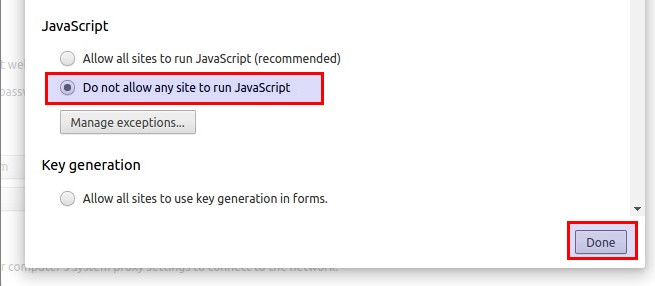
To disable JavaScript in your chrome browser.. Check the radio button named
"Do Not Allow Any Site To Run JavaScript"

Disable JavaScript In Opera Browser

Step 1 :

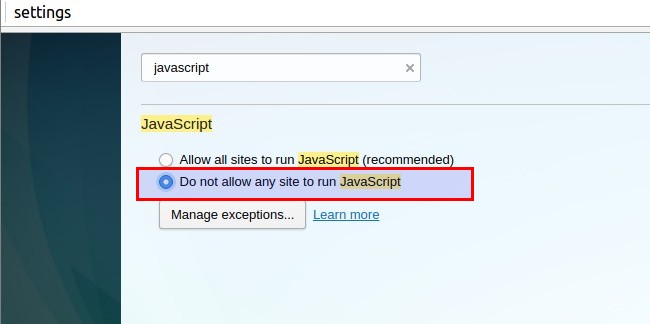
Open Browser Settings (You can also directly access browser settings simply , type chrome:settings in location bar and press "ENTER" button..) and then Type "javascript" in search box present in settings window..

Step 2 :

To disable JavaScript in your Opera web browser.. Check the radio button named
"Do Not Allow Any Site To Run JavaScript"

How to video for you...


Saturday, November 28, 2015

NetSurf : An Extremely Fast and Light weight Web Browser

NetSurf

An Extremely Fast and Light weight Web Browser

NetSurf is a free, open source web browser. It is written in C and released under the GNU Public Licence version 2.
NetSurf has its own layout and rendering engine entirely written from scratch. It is small and capable of handling many of the web standards in use today.

Whether you want to check your webmail, read the news or post to discussion forums, NetSurf is your lightweight gateway to the world wide web. Actively developed, NetSurf is continually evolving and improving.

Also Read: How to get started with Linux: A beginner's guide

Why choose NetSurf?

  • Speed
  • Simple interface
  • Light weight
  • Portable
  • Standards compliant
See More At : www.netsurf-browser.org

Project Goals

  • Adhere to the standards
  • Superior user experience
  • Keep NetSurf small
  • Portability
  • Modularity
  • Have fun with Learning By contributing
See Brief Design Goals at : Net Surf ProjectGoals

Ports & Availability

NetSurf 3.3 features

  • Web standards: HTML 4.01 and CSS 2.1
  • Image formats including: PNG, GIF, JPEG, SVG, and BMP
  • HTTPS for secure online transactions
  • Unicode text
  • Web page thumb-nailing
  • Local history trees
  • Global history
  • Hot-list manager (bookmarks)
  • Cookie manager
  • URL completion
  • Text selection
  • Scale view
  • Search-as-you-type text search highlighting
  • Save pages complete with images
  • Fast, lightweight layout and rendering engine

Also Read: 47 cool browser hacks

Installation Instructions:

For Debian Based Linux :

Also Read: The only remaining barrier to entry for Linux

step 1 : Download *.deb binary file of Net Surf Browser to Downloads ( ~/Downloads) Folder .
step 2 : Now open command line & navigate into downloads folder

cd ~/Downloads
step 3 : then install using dpkg command
sudo dpkg -i package_name.deb

Note : In above command (sudo dpkg -i package_name.deb) replace package_name by downloaded package name .


If you encounter any problems during installation Run below commands:
sudo apt-get update && sudo apt-get -f install

if you have further doubt in installation see this link.

Installation procedure for other os :see official documentation .


Also Read: have a fun with Linux vs Windows vs Mac

Related Links :


Thursday, May 7, 2015

Chromixium

Chrome OS Look-Alike Linux Distro Chromixium Released


Power of Ubuntu and the looks of Chrome OS.
Do you want the best of both world?
 Chromixium is the latest entrant in the Linux distro world that has Chrome OS inspired look on top of Ubuntu. While I am not a fan myself, I know there are plenty of Chrome OS admirer out there. And for those fans, Chromixium can be a treat.

Read more at itsfoss.com


 you may also like to read:

47 Keyboard Shortcuts That Work in All Web Browsers 

and

Camicri Cube