How To Move Unity Launcher To The Bottom Of The Screen ( In Ubuntu 16.04 )
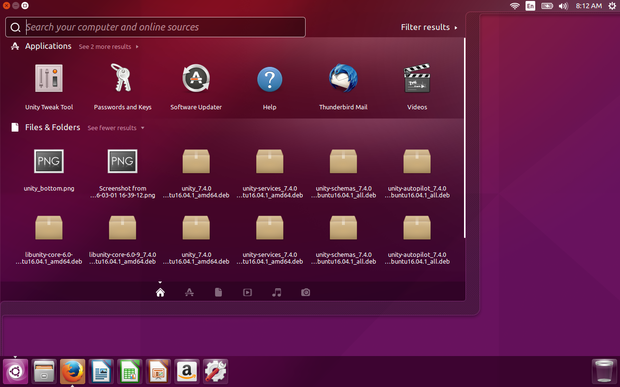
Screen Shot : Ubuntu 16.04 launcher moved to bottom of the screen
Finally the default Unity Desktop’s left launcher panel can be moved to the bottom of screen in Ubuntu 16.04 LTS Xenial Xerus. Ubuntu 16.04 has reached its final beta. One of the great new features is that the left launcher panel now is movable: to Left or to Bottom.
However, the 'option' to change position is buried deep in the geeky depths of dconf-editor it is the one change that everyone is talking about.
At present, you can change Unity Launcher position in following two ways:
Method 1: Command line way
For those prefer Linux commands, this can be done via a single command in terminal:
Open a terminal (Ctrl+Alt+T) and use the following commands accordingly:
Move the Unity Launcher to bottom:
gsettings set com.canonical.Unity.Launcher launcher-position Bottom
Move the Unity Launcher back to left:
gsettings set com.canonical.Unity.Launcher launcher-position Left
For graphical way, do:
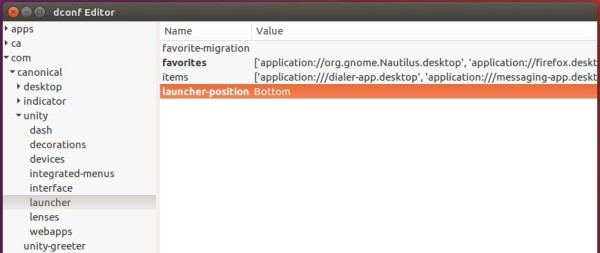
1.You need dconf-editor to do this in GUI way.. so install dconf-editor with following command .
sudo apt-get install dconf-editor
2. Launch dconf editor after installation, and navigate to "com -> canonical -> unity -> launcher". Finally change the value of “launcher-position” to select Unity Launcher position.
To make the bottom panel fit your screen, go to System Settings -> Appearance and change the value of Launcher icon size.
The change takes into effect immediately. No need for a restart or even closing the dconf editor.
Screen Shot : Ubuntu 16.04 launcher moved to bottom of the screen
Ubuntu 16.04 ( Xenial Xerus ), the next major/LTS(Long Term Release) of Ubuntu, is set for its stable release on Thursday April 21, 2016. And here, What's new in the next major version of world's most linux distribution. share it , with fellow linux fans and enjoy !!
New features in 16.04 LTS
Though we already know that this new release is not bringing a big UI changes to Unity Desktop.. It's worth to mention.. that ... Ubuntu 16.04 finally lets you move the Unity launcher to the bottom of the screen - nearly six long years after user's first asked. And you have the Ubuntu Kylin team to thank for it for it is they who did the heavy work of hacking Unity to be moveable.
Ubuntu 16.04 finally lets you move the Unity launcher to the bottom of the screen
While the 'option' to change position is buried deep in the geeky depths of dconf-editor it is the one change that everyone is talking about. But it's not the only welcome improvement.
Updated Packages
As with every new release, packages--applications and software of all kinds--are being updated at a rapid pace. Many of these packages came from an automatic sync from Debian's unstable branch; others have been explicitly pulled in for Ubuntu 16.04.
Linux kernel 4.4
This beta of Xenial ships with Linux kernel 4.4, with the following highlights:
Improved Intel Skylake processor support
3D support in the virtual GPU driver
New driver for Corsair Vengeance K90
Support for TPM 2.0 chips
Journaled RAID 5 support
Linux Kernel 4.4 also includes less obvious changes including bug fixes and improvements for various file systems, power efficiency, and memory management.
Want a fuller overview of changes? Check out here..!
Core Application Updates
A batch of updates to Ubuntu applications are also included. Among them you'll find:
As is to be expected, with any release, there are some significant known bugs that users may run into with this release of Ubuntu 16.04. The ones we know about at this point (and some of the workarounds), are documented here so you don't need to spend time reporting these bugs again:
Boot, installation and post-install
Errors about swap partition at install
There is a known issue regarding the creation of swap space during the install. In some cases the install will display the error message "Creation of swap space in Partition #n .... failed.". Please see this https://bugs.launchpad.net/ubuntu/+source/ubiquity/+bug/1552539 for more information. You may work around the issue by manually partitioning the disk and removing any existing swap partitions before then creating a new one.
Upgrade
14.04 LTS to 16.04 LTS Desktop Upgrade
There is a known issue which prevents the upgrade of 14.04 LTS to 16.04 LTS. Please see this bug for more information.
At this time you should not attempt to upgrade a production desktop from 14.04 LTS to 16.04 LTS.
Amazingly, there is only one known major bug in the release. Conrad explains, "in some cases, attempts to install to a hard drive that already contains a swap partition may fail in the partitioning phase. If you encounter this, the simplest workaround is to boot to the live session, start a terminal (Ctrl-Alt-T) and type 'sudo swapoff -a'. You can then start the installation from the icon on the desktop and it should proceed successfully".
Graphics and Display
fglrx
The fglrx driver is now deprecated in 16.04, and we recommend its open source alternatives (radeon and amdgpu). AMD put a lot of work into the drivers, and we backported kernel code from Linux 4.5 to provide a better experience.
When upgrading to Ubuntu 16.04 from a previous release, both the fglrx driver and the xorg.conf will be removed, so that the system is set to use either the amdgpu driver or the radeon driver (depending on the available hardware).
More information is available here https://tjaalton.wordpress.com/2016/03/11/no-catalystfglrx-video-driver-in-ubuntu-16-04/
Download Ubuntu 16.04 Beta 2
Beta releases of Ubuntu are not for everyone. If you need a stable system, hate bugs and can’t deal with potential package breakages, wait for the stable release next month.
And if you are keen to try it out stick to running it off of a live USB or DVD. Also note that there is a major bug that may cause beta installs to fail on hard-drives which already contain a swap partition.
You can download a fresh desktop image of Ubuntu 16.04 Final Beta from the Ubuntu releases server
Download Stable Version Ubuntu 16.04 LTS From Official Website
Today(21st April 2016) the stable version of Ubuntu 16.04 released.
Now ,You can download and install it in your Linux Box... Enjoy Linux...☻
Dont't Forget To Share With Your Friends...☻
You can download a fresh image of Ubuntu 16.04 LTS Final stable release from official Ubuntu website..
How To Save Screen Brightness In Ubuntu 14.04 LTS (Solution For Screen Brightness Problem On Ubuntu 14.04)
Laptop users still have the screen brightness problem with Ubuntu 14.04.Every time the screen brightness gets maximum value on Ubuntu startup.
we can solve this problem by adding a small startup script to adjust the screen brightness levels on ubuntu startup.The script will automatically set/overwrite the default brightness value with specified/desired brightness value when Ubuntu boots up.
Here the step by step guide to save the screen brightness on Ubuntu 14.04 :
step 1 :
open Terminal by Ctrl+Alt+T
step 2:
Navigate to backlight directory.
cd /sys/class/backlight
step 3 :
Now you can see two directories(acpi_video0 and radeon_bl0) inside the backlight directory.
To see them use ls command.
ls
step 4 :
The upcomig steps depends on your computer processor . So you need find whether your computer is powered by intel or AMD. The following command will show your processor name....
if the above command didn't show any variations in brightness value for different brightness values..
then, in above command, replace intel_backlight with the name of another folder(see:the output of step 3) present inside the backlight folder.
and try again..
[NOTE: Remember This Brightness Values For Future Usage]
step 6 :
Get root privileges by using this command:
sudo -i
step 7 :
Now we need to create a new configuration file called fixbrightness.conf
gedit /etc/init/fixbrightness.conf
step 8 :
Now Paste the following code into the above created (fixbrightness.conf) file.
description "Sets brightness after graphics device is loaded"
start on graphics-device-added
task
exec /bin/echo 2 > /sys/class/backlight/acpi_video0/brightness
In above code,Replace the value 2 > with the brightness value we found in step 5 Similarly, Replace the folder name acpi_video0 with the folder name you used in step 5(before the word actual_brightness in code)
October 22, 2015 — that’s the planned release date of Ubuntu 15.10 ‘Wily Werewolf’.
An October launch for such a scary sounding release is
fitting, though I’m sure a few of you been hoping to see it unleashed a
little closer to Hallowe’en.
Heck, imagine landing a copy of that in your trick or treat bag!
Nevertheless, the release of Ubuntu 15.10 should be one to look forward to.
Ubuntu 15.10 Release Date
The Ubuntu 15.10 release date, along with the those of the various
development milestones needed to get there, have been posted to the
Ubuntu Wiki.
Prior to the stable release on October 22, Ubuntu will make only a
few formal milestone appearances during the six month development cycle,
the most notable of which will be Beta 2 on September 24.
Ubuntu developers put the main release through such rigorous and assured quality testing on a daily basis that it is generally considered stable enough to use at any point.
Ditching arbitrary freeze deadlines allows developers to target bug
fixes and land patches, as well as test them, when they’re ready.
Ubuntu’s family of flavours, which now includes
Ubuntu MATE, are more traditional in their development and will, once
again, be able to take full advantage of the multiple testing
opportunities at hand.
If you have too many applications
crowding all the space in Unity launcher, you might be thinking of a
better way to manage them. Making icons tinier by reducing the icon size
is one way, but would it not be better if you could group a bunch of
icons? This is what we already do in Android and iPhones. Group the apps
together and save the screen space.
LauncherFolders
is one such application for Ubuntu Unity that allows you to group apps,
files, folders, chrome web apps, links and shell scripts in folders.
And these folders then can be used directly in Unity launcher. Reminds
of another similar tool Drawer, isn’t it?