Secure Your Linux Box With Proper Service Management
(How To Manage Services In Linux)

Managing services are the one of the important job in Linux administration and it's a one of the first thing we need to do ,to harden the security of our Linux system.
After installing Linux the first thing you should do is turn off all services and deny all incoming traffic till you configured the box securely.
In general,default installation might run many nonessential services. These services may turn into security risks and also waste hardware resources. So,The best defense is to turn off all unwanted service.
This guide shows you how to enable and disable services in Linux. This is the command line method of enabling and disabling services. Some Linux distributions like Fedora, Ubuntu and so on do provide a GUI front-end as well.
So how do you disable these services so that they are not started at boot time?
The answer to that depends on the type of Linux distribution you are using.
True, many Linux distributions including Ubuntu bundle with them a GUI front end to accomplish the task which makes it easier to enable and disable the system services.
But there is no standard GUI utility common across all Linux distributions. And this makes it worth while to learn how to enable and disable the services via the command line.
Most Linux distributions have one thing in common. That being, all the start-up scripts are stored in the /etc/init.d/ directory.
How to enable and disable services in Red Hat
This method is for RedHat and similar systems Like Fedora and CnetOS. Red Hat, Fedora, and Red Hat based Linux distributions such as CentOS make use of the script called chkconfig to enable and disable the system services running in Linux.
How to enable a service
As an example, lets enable the Apache web server to start in run levels 2, 3, and 5. This is how it is done.
We first add the service using chkconfig script. Then turn on the service at the desired run levels.
chkconfig httpd --add

chkconfig  httpd  on --level 2,3,5
This will enable the Apache web server to automatically start in the run levels 2, 3 and 5. You can check this by running the command
chkconfig --list httpd
How to disable a service
chkconfig httpd off

chkconfig httpd --del
Red Hat/Fedora also have a useful script called service which can be used to start or stop any service. For example, to start Apache web server using the service script, the command is as follows
service httpd start
and to stop the service...
service httpd stop
The options being start, stop and restart which are self explanatory.
How to enable or disable services in Debian / Ubuntu
To Enable and disable services across runlevels in Debian, Ubuntu, and other Debian based Linux distributions we use a script called update-rc.d.
How to enable a service
As an example, to enable Apache web server in Debian, do the following
update-rc.d apache2 defaults
... this will enable the Apache web server to start in the default run levels of 2,3,4 and 5. Of course, you can do it explicitly by giving the run levels instead of the defaults keyword as follows:
update-rc.d apache2 start 20 2 3 4 5 . stop 80 0 1 6 .
The above command modifies the sym-links in the respective /etc/rcX.d directories to start or stop the service in the destined runlevels. Here X stands for a value of 0 to 6 depending on the runlevel. One thing to note here is the dot (.) which is used to terminate the set which is important. Also 20 and 80 are the sequence codes which decides in what order of precedence the scripts in the /etc/init.d/ directory should be started or stopped.
To enable the service only in runlevel 5, you do this instead
update-rc.d apache2 start 20 5 . stop 80 0 1 2 3 4 6 .
How to disable a service
To disable the service in all the run levels, you execute the command:
update-rc.d -f apache2 remove
Here -f option which stands for force is mandatory.
How to enable or disable services in Gentoo
Gentoo Linux also uses a script to enable or disable services during boot-up. The name of the script is rc-update. Gentoo has three default run levels. They are -
- boot
- default
- nonetwork
How to enable a service
Lets set Apache web server to start in the default runlevel.
rc-update add apache2 default
How to disable a service
To remove the web server, use the del option as follows.
rc-update del apache2
List all running services
To list all the running services at your run level and check their status, you use the rc-status command.
rc-status --all
How to enable and disable services manually
I remember the first time I started using Linux, there were no such scripts to aid the user in enabling or disabling the services during start-up.
You did it the old fashioned way which was creating or deleting symbolic links in the respective /etc/rcX.d/ directories. Here X in rcX.d is a number which stands for the runlevel.
As an example, here is a listing of all the services started in runlevel 5 in my PC running Ubuntu.
ls -l /etc/rc5.d
And the output is ...
As you can see, all the content in the /etc/rc5.d directory are symbolic links pointing to the corresponding script in the /etc/init.d directory.
There can be two kinds of symbolic links in the /etc/rcX.d/ directories.
One starts with the character 'S' followed by a number between 0 and 99 to denote the priority, followed by the name of the service you want to enable.
The second kind of symlink has a name which starts with a 'K' followed by a number and then the name of the service you want to disable.
So in any /etc/rcX.d directory, at any given time, for each service, there should be only one symlink of the 'S' OR 'K' variety but not both.
So coming back to our Apache example, suppose I want to enable Apache web server in the run level 5 but want to disable it in all other run levels, I do the following:
First to enable the service for run level 5, I move into /etc/rc5.d/ directory and create a symlink to the apache service script residing in the /etc/init.d/ directory as follows:
cd /etc/rc5.d/

ln -s /etc/init.d/apache2 S20apache2
This creates a symbolic link in the /etc/rc5.d/ directory which the system interprets as - start (S) the apache service before all the services which have a priority number greater than 20.
If you do a long listing of the directory /etc/rc5.d in your system, you can find a lot of symlinks similar to the one below.
ls -l /etc/rc5.d |grep apache2

lrwxrwxrwx 1 root root  26 2012-03-18 21:10 S20apache2 -> ../init.d/apache2
Now if I start a service, I will want to stop the service while rebooting or while moving to single user mode and so on. So in those run levels I have to create the symlinks starting with character 'K'.
So going back to the apache2 service example, if I want to automatically stop the service when the system goes into run level 0, 1 or 6, I will have to create the symlinks in the /etc/rc0.d, /etc/rc1.d/, /etc/rc6.d/ directories as follows
cd /etc/rc0.d

ln -s /etc/init.d/apache2 K80apache2
One interesting aspect here is the priority. Lower the number, the higher is the priority.
So since the starting priority of apache2 is 20 - that is apache starts way ahead of other services during startup, we give it a stopping priority of 80.
There is no hard and fast rule for this but usually, you follow the formula as follows:
If you have 'N' as the priority number for starting a service, you use the number (100-N) for the stopping priority number and vice versa.
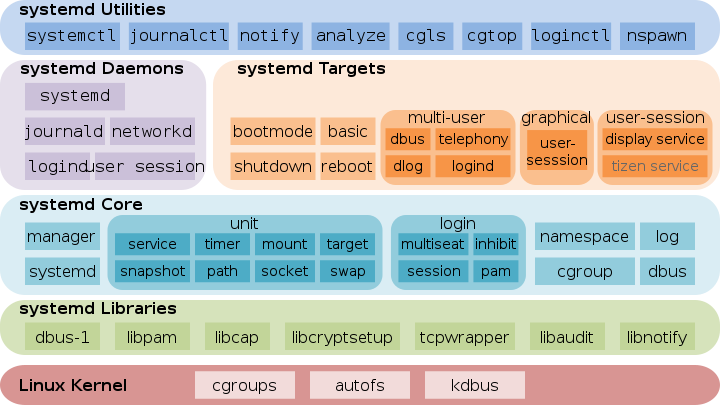
Managing services with systemd
Systemd is one of the most controversial projects in Linux-land , and As of 2015, many Linux distributions have adopted systemd as their default init system.
It has been—or is being—adopted by Linux distributions from Fedora and OpenSuSE to Ubuntu, Debian, and even Arch Linux.
So , It's important to learn systemd way of managing services on Linux . I have wrote one seperate post on "How to manage services on Linux With systemd"