Showing posts with label password. Show all posts

Thursday, September 22, 2016

Create Password Protected PDF Files Using LibreOffice

Create Password Protected PDF Files Using LibreOffice

Portable Document Format (PDF) is one of the commonly used file formats in our day to day life.. There may be a times, we need to create PDF files from word documents.. Here I am going to show you how to create PDF files from word documents and protect them with passwords (using Libre Office)

Step 1 :

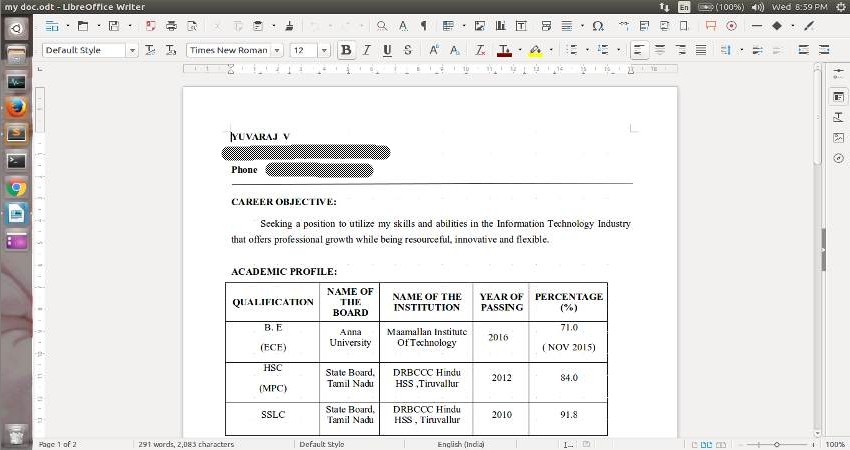
Open your document with LibreOffice which you want to convert into PDF format...
Step 2 :

Then goto File menu and select Export As PDF
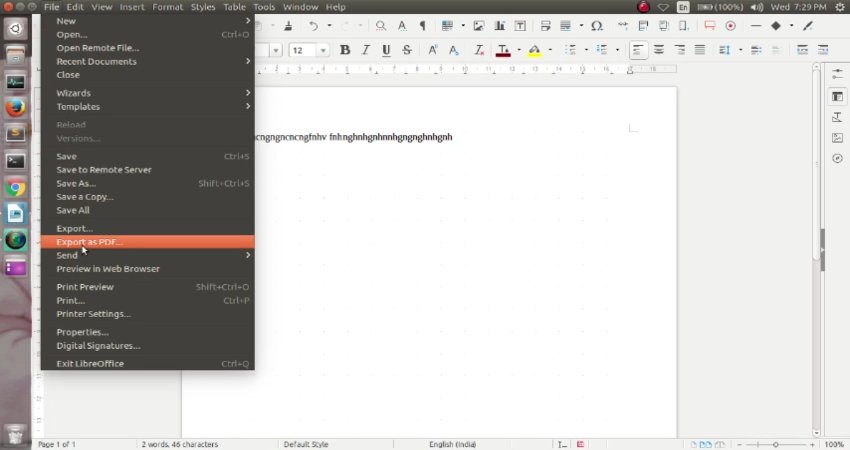
Now you will see dialog box like one shown below..
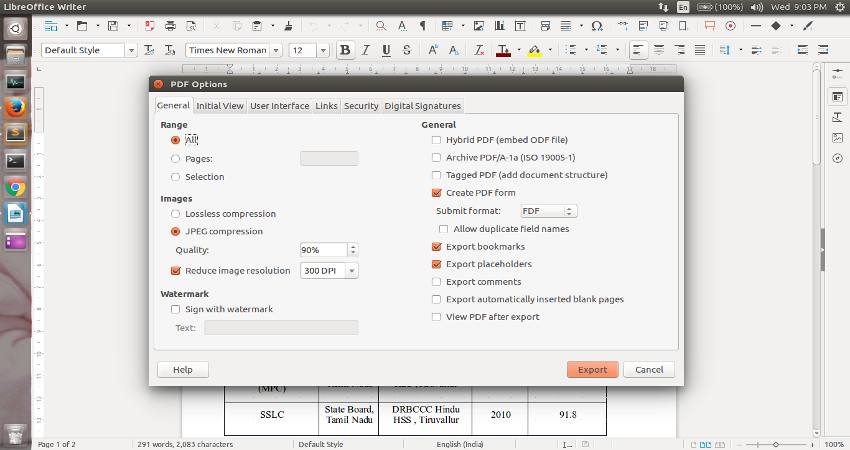
Step 3 :

Then Navigate to tab named Security and Click Set Passwords button..
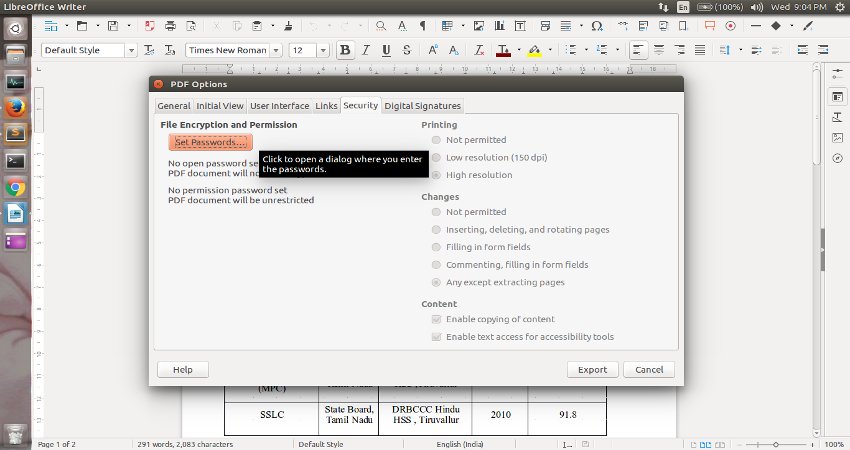
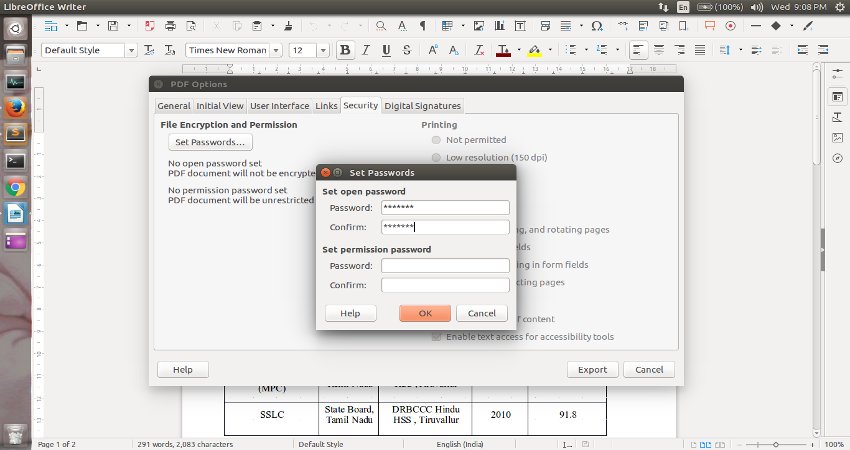
After Clicked on Set Passwords button you will see set password dialog shown below..
Enter the password you want to set to PDF file.. and click on OK.. and then on Export
Step 4 :

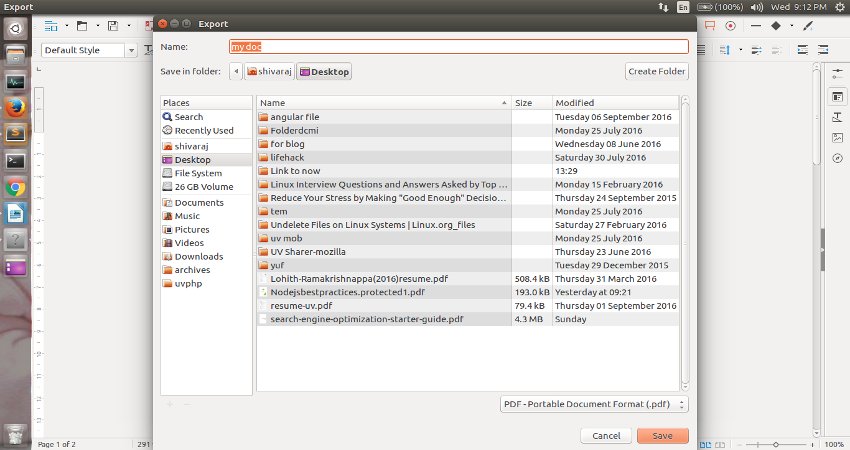
When you click on Export you will get save dialog box like one shown below..
You can save your newely created PDF document on your file system..
Step 5 :

Now try to open newely created PDF document ... It will ask you for password to open the PDF document...
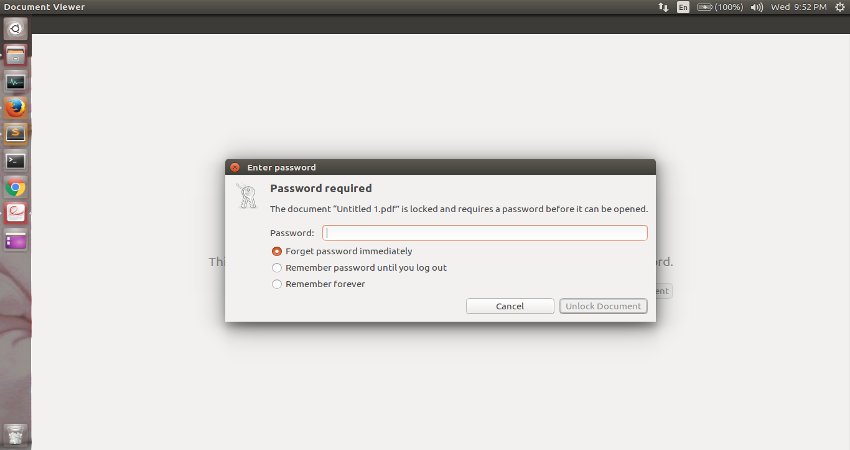
That's it for now ... You can follow us on fb.com/opensourceinside and take a glipse of our youtube channel and don't forget to Subscribe it guys..


Here is the video for above tip...


Tuesday, September 20, 2016

How To Remove Password From Password Protected PDF File Using Google Chrome

How To Remove Password From Password Protected PDF File Using Google Chrome

Portable Document Format (PDF) is one of the commonly used file formats in our day to day life... While it offers grade of security with optional password protection, there are times when we may need unsecured copy of password protected PDF file.
Here, we are going to see, how to achieve the above with the evergreen web browser Google Chrome (of course, we can do the same with Mozilla Firefox )

So, Before we start, you need to have Google Chrome installed in your system... (See, How To Install Google Chrome On Ubuntu Linux).

Step 1 :

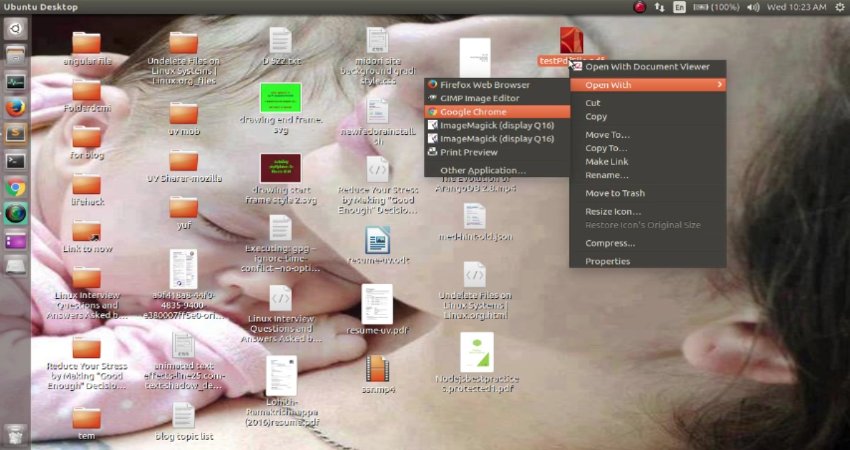
Open your password protected PDF file either with Google Chrome or with Mozilla Firefox...

Step 2 :

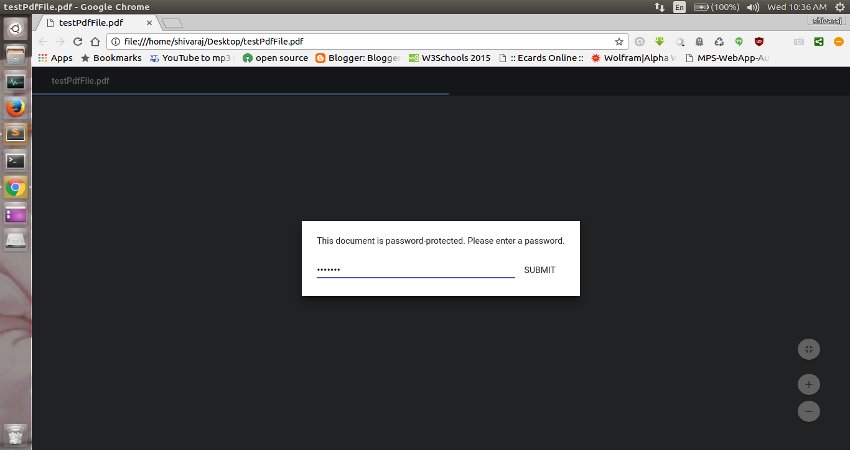
It will ask you for password ... provide it..
After entering password the PDF will be displayed by your browser..

Step 3 :

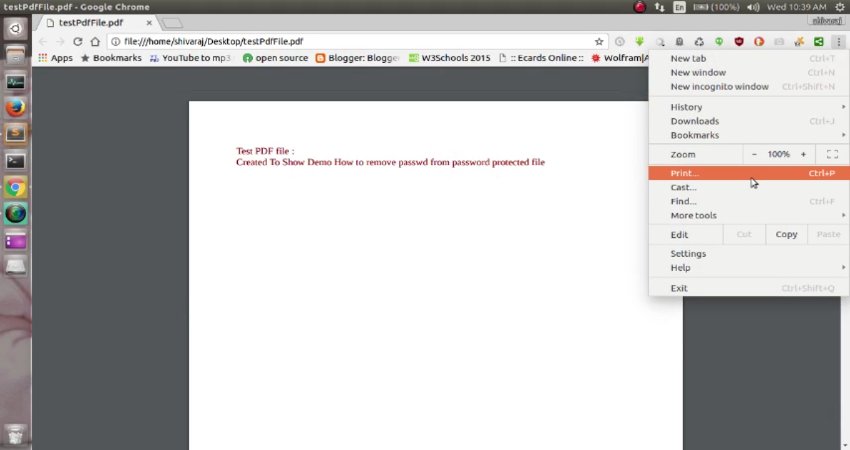
Now, Press Ctrl + P on your keyboard or go to options and click on Print option..

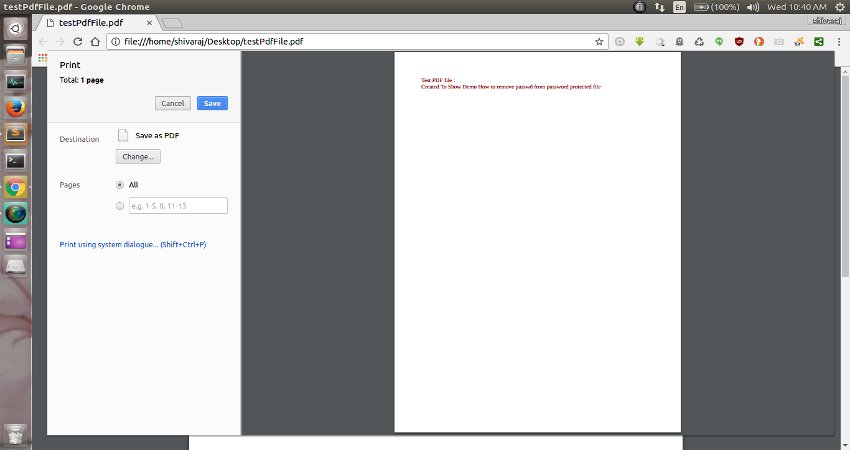
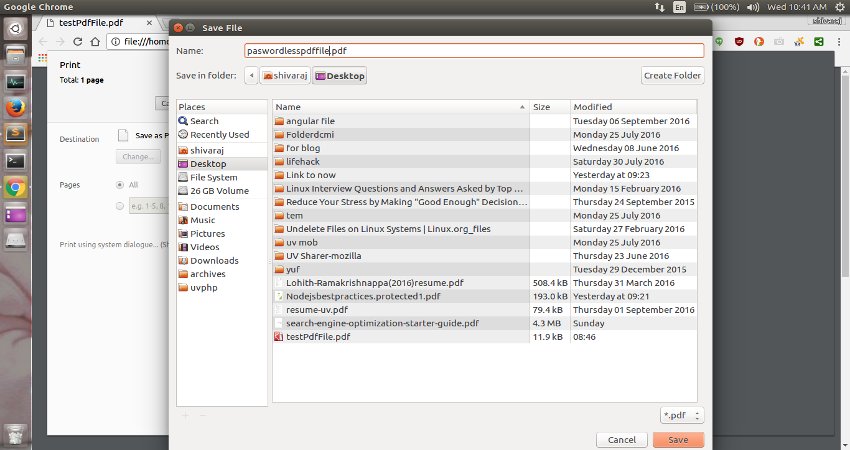
After you click on print option you will see dialog like shown below..

Step 4 :

Now click on Save button and Save the new copy of PDF file in somewhere else..
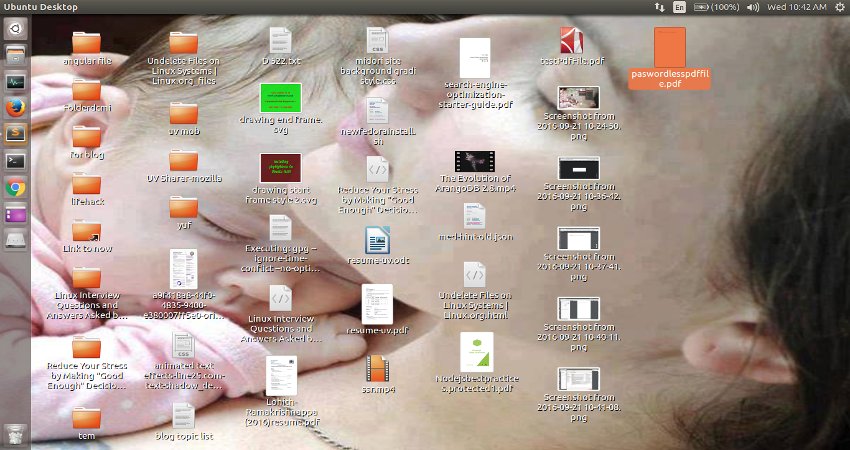
This new copy is password free ....


That's it ... Your new password less copy of PDF file is now ready...

Friends.. If you like this tip.. Do share this small trick on social media with your friends... You can follow more updates on our Facebook page


Here is the video for above tip...