Showing posts with label opera. Show all posts

Sunday, May 29, 2016

How To Enable/Disable JavaScript In Your Web Browser

How To Enable/Disable JavaScript
In Your Web Browser

JavaScript is a standard programming language that can be included in web pages to provide functionality such as menus, sounds, and other interactive features. By default, Firefox enables the use of JavaScript and requires no additional installation.

Do you have to disable JavaScript, for some reason(see, Why do people disable JavaScript )?
Here is the step-by-step instructions for disabling JavaScript in your browsers. By the way, Java and JavaScript are two different things, so make sure that you're looking at the correct language.

TIP : If you're a web developer, you are adding JavaScript to your pages, it's a good idea to view your pages with JavaScript disabled, so you can get an idea what users without JavaScript enabled browsers would see.


WARNING : Please note that you may loose some of the web page functionality by disabling JavaScript.

Disable JavaScript In Firefox

Step 1 :

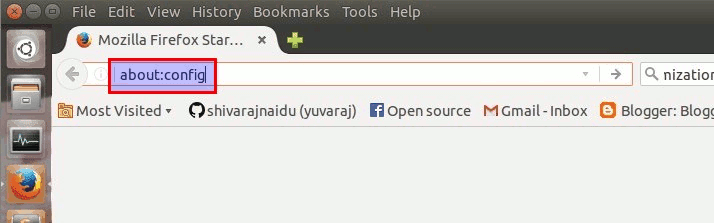
Type about:config in your location bar and press "ENTER" button..
Step 2 :

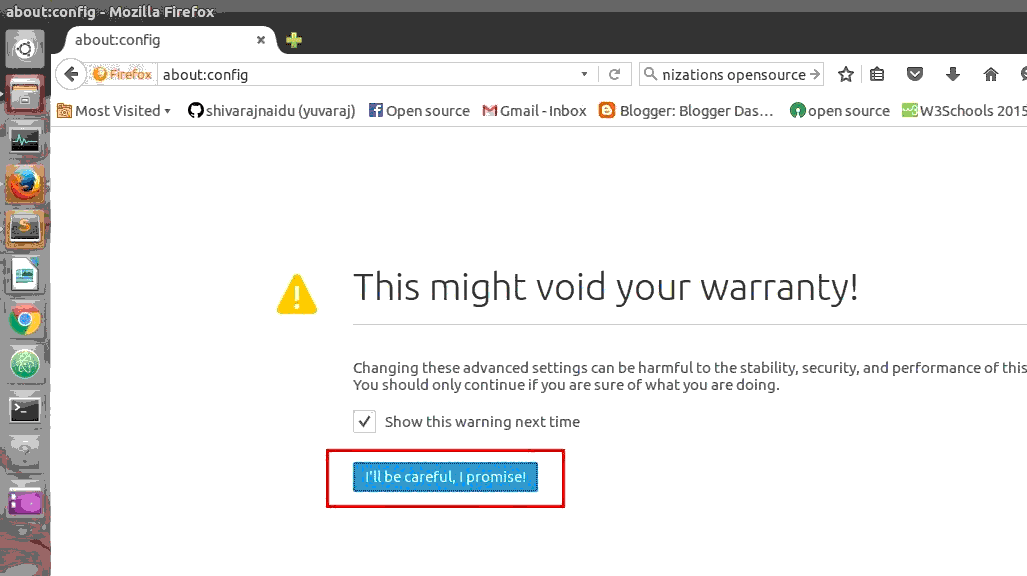
Now confirm the warning message..
Step 3 :

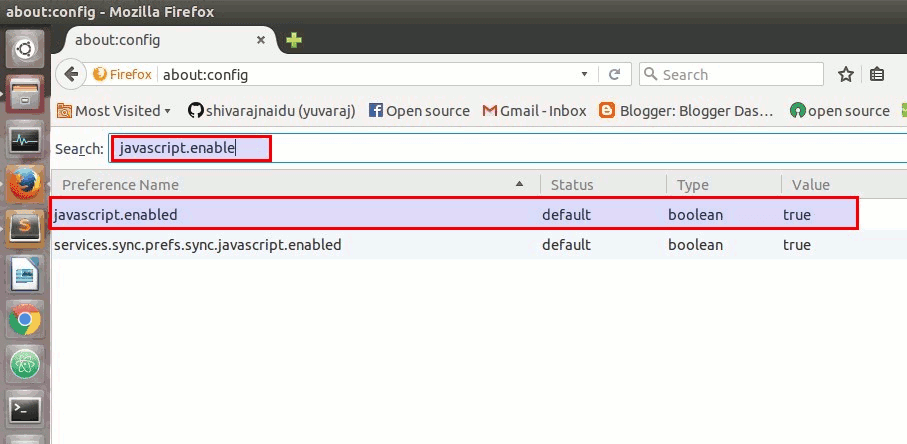
Now , type "javascript.enabled" in search box..
Now change the value of javascript.enabled to false (The default value is "true".. to change it to "false", Right click on it and select toggle option.)
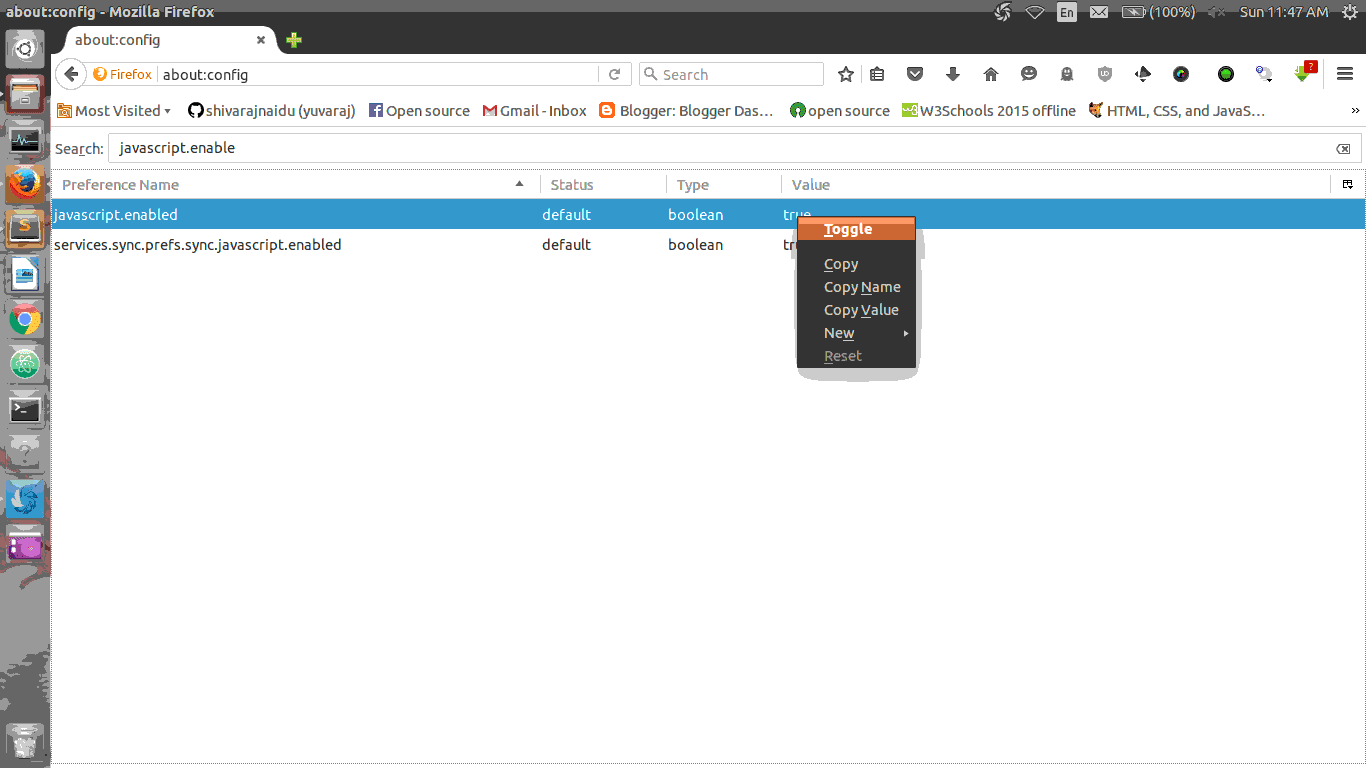
To enable it again, toggle the value back to its default value.. (i.e) set the value as "true"

Disable JavaScript In Google Chrome

Step 1 :

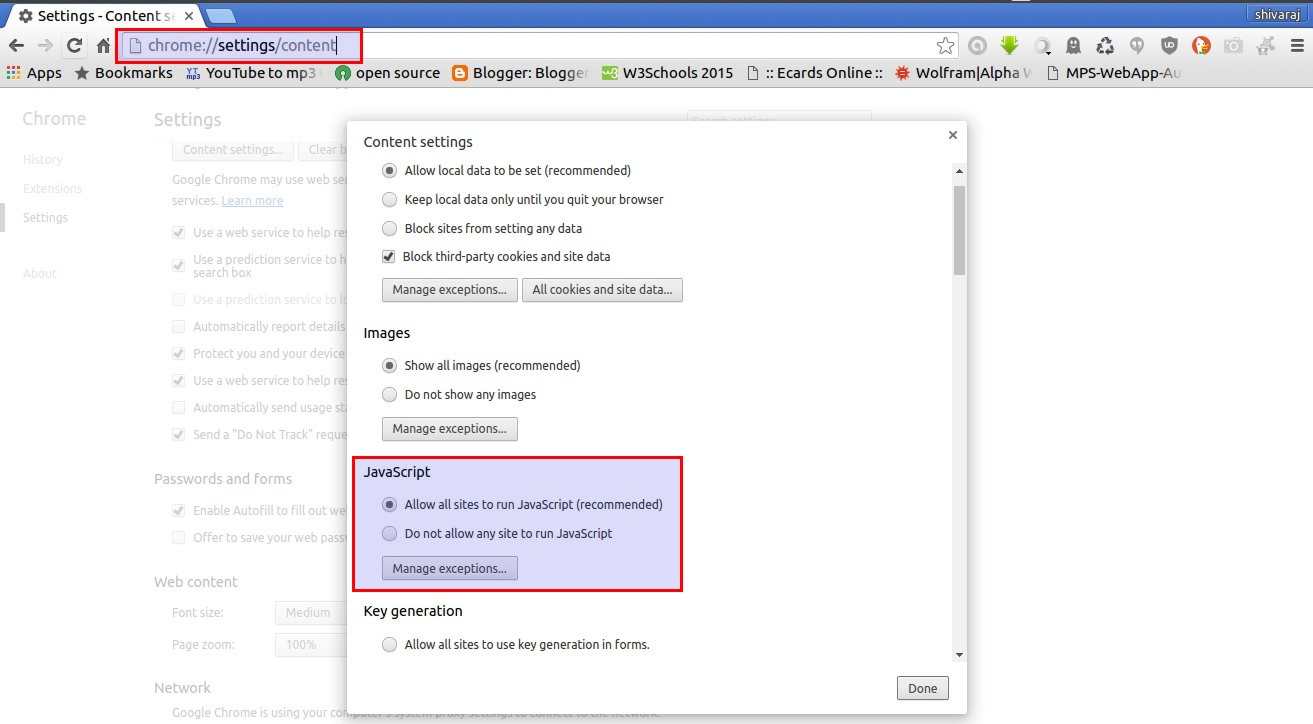
Open Browser Settings and then goto content options(through advace settings).. or (You can also directly access content settings simply , type chrome:settings/content in location bar and press "ENTER" button..)
Then look at there for javascript options..
Step 2 :

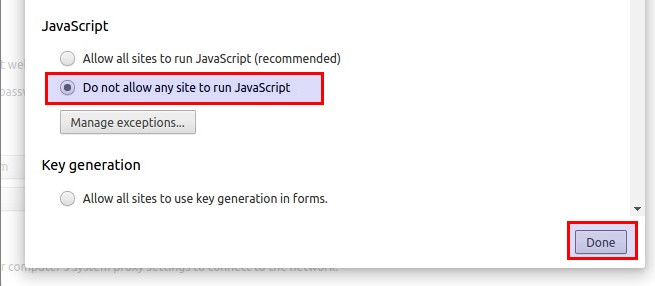
To disable JavaScript in your chrome browser.. Check the radio button named
"Do Not Allow Any Site To Run JavaScript"
Disable JavaScript In Opera Browser

Step 1 :

Open Browser Settings (You can also directly access browser settings simply , type chrome:settings in location bar and press "ENTER" button..) and then Type "javascript" in search box present in settings window..

Step 2 :

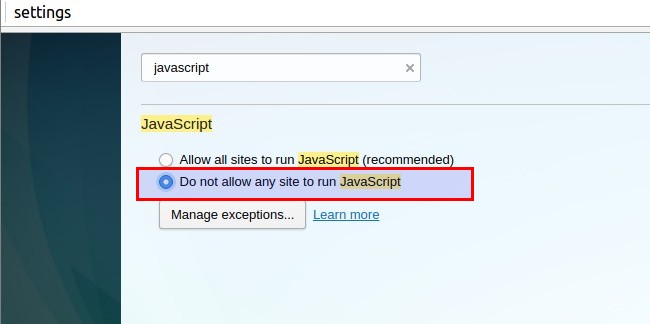
To disable JavaScript in your Opera web browser.. Check the radio button named
"Do Not Allow Any Site To Run JavaScript"
How to video for you...


Saturday, May 16, 2015

47 Keyboard Shortcuts That Work in All Web Browsers

Short-cuts are very useful and convenient for our day to day computer use.....

and we are using different browsers(firefox, chrome, opera etc...),  but they are all share some short-cuts commonly between them...


Each major web browser shares a large number of keyboard shortcuts in common. Whether you’re using Mozilla Firefox, Google Chrome, Internet Explorer, Apple Safari, or Opera – these keyboard shortcuts will work in your browser.


Each browser also has some of its own, browser-specific shortcuts, but learning the ones they have in common will serve you well as you switch between different browsers and computers. This list includes a few mouse actions, too.


Tabs

Ctrl+1-8 – Switch to the specified tab, counting from the left.

Ctrl+9 – Switch to the last tab.


Ctrl+Tab – Switch to the next tab – in other words, the tab on the right. (Ctrl+Page Up also works, but not in Internet Explorer.)

Ctrl+Shift+Tab – Switch to the previous tab – in other words, the tab on the left. (Ctrl+Page Down also works, but not in Internet Explorer.)

Ctrl+W, Ctrl+F4 – Close the current tab.

Ctrl+Shift+T – Reopen the last closed tab.

Read more at How To Geek .....


 you may also like to read...

Group Apps In Unity Launcher With LauncherFolders 

Chrome OS Look-Alike Linux Distro Chromixium